
On this page...
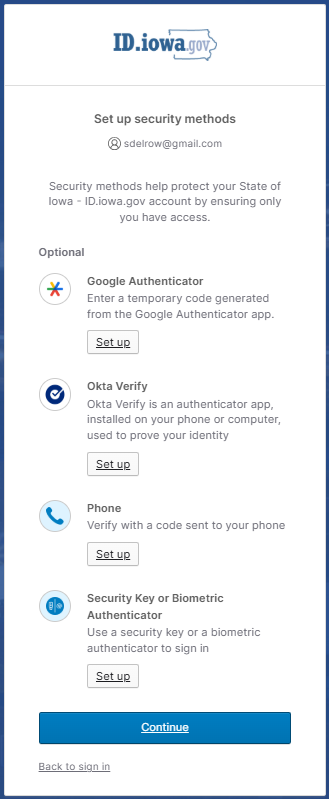
While ID.iowa.gov does not require you to set-up a secondary authentication method, it is recommended as an added layer of protection to secure your information.
Okta Verify
Okta Verify is more secure against phishing and theft than other options of secondary authentication.
Okta Verify is downloaded to your device and generates secure, six-digit codes you use to help sign in to your accounts. While authentication applications are not protected if your device is lost or stolen, this method offers more security than phone calls or text messaging against phishing, hacking, or interception.
Phone Authentication
Phone is used for both SMS text messages and Voice Calls but considered one type of Authenticator. You will have the option to select either SMS or Voice.
SMS text messages or phone calls are convenient but are more vulnerable to theft, hackers, and other attacks.
If you choose to use this option, enter a phone number where you can receive calls or text messages. If you only have a landline, you must receive your security code by phone call. ID.iowa.gov cannot send security codes to extensions or voicemails.
A unique security code will be sent to that phone number each time you sign in to your ID.iowa.gov account. When you receive the code, type it into the one-time security code field. Each security code expires after ten minutes and can only be used once. If you are unable to enter the security code within ten minutes, request a new code.
Back to topAdd an Authentication Option
Enter your email address at https://ID.iowa.gov
Select the Next button
Enter your password
Select the Verify button
Select your name in the upper right-hand corner
Select Settings
Select Security Methods
Select the Set up button next to the Authentication method
Please note that only Okta Verify and Phone are available at this time.
Okta Verify
Be sure to download and install Okta Verify to your mobile device before you begin.
The Okta Verify App is available on the iOS App Store and Google Play Store.Follow the instructions to scan or enter a code associating your authentication app with your account.
You will now be able to use the one-time passcodes generated by the application each time you sign in to id.iowa.gov.
Phone Authentication
Follow the instructions to add a phone number.
Remove an Authentication Option
Enter your email address at https://ID.iowa.gov.
Select the Next button
Enter your password
Select the Verify button
Select your name in the upper right-hand corner
Select Settings
Select Security Methods
Select the Remove button next to the Authentication method you want removed
Select Yes